Every Mac already has a PDF tool built in, and for a quick form fill or signature, it often does the job. The question is what happens when the work needs more than that: real editing, sharing a document with someone on Windows, or keeping a signed copy synced across devices. A tool that lets you edit PDF files, fill forms, and sign on a Mac, without hitting those limits, is what this list is actually about.
Comparison Table: PDF Editors for Mac
(Please note that features and pricing can change over time.) 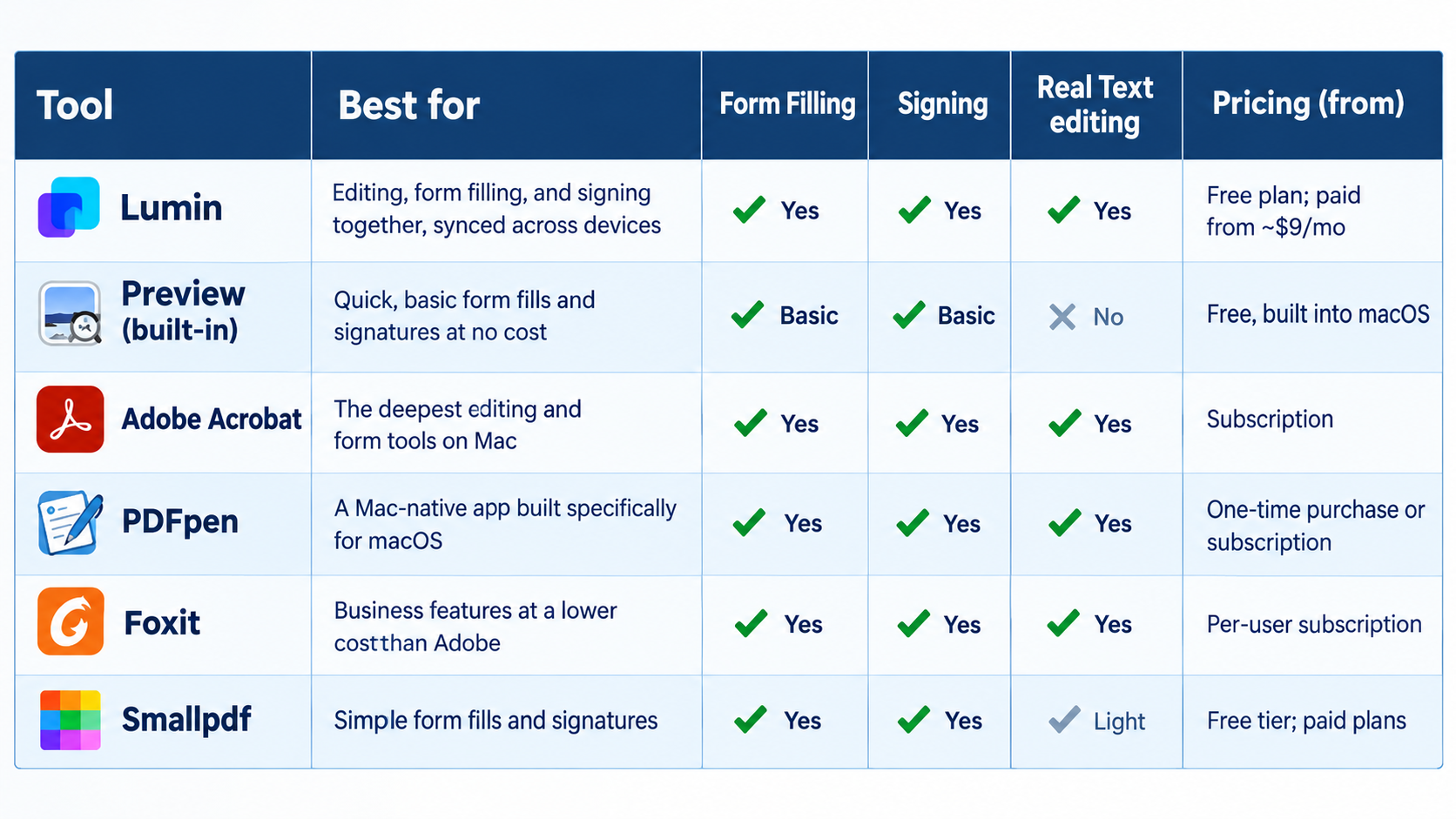 Tool Overviews
1. Lumin
Fill a form, add a signature, and edit the actual text of a document, all in the browser on a Mac, with nothing to install. The finished file syncs to Google Drive or Microsoft OneDrive, so it stays reachable from a Windows machine too, not just other Apple devices.
Real-time collaboration lets someone else review the same document, with comments and version history tracking what changed.
- Best for: Editing, form filling, and signing together, synced beyond just Apple devices.
- Standout: Real text editing plus forms and signing, with cloud sync that works outside the Apple ecosystem.
- Free tier: Free plan available.
- Pricing: From around $9 a month.
2. Preview (built-in)
Every Mac already has this, so filling a simple form or adding a signature costs nothing and needs no download.
- Best for: A quick form fill or signature with no cost and no new app.
- Standout: Already installed on every Mac, with no signup required.
- Free tier: Free, built into macOS.
- Pricing: Free.
- Note: No real text editing, and syncing outside Apple’s own ecosystem is limited.
3. Adobe Acrobat
The deepest form-building and editing tools on Mac live here, useful for a complex form or a document that needs real structural changes.
- Best for: The most advanced editing and form-building capability.
- Standout: Full control over form fields and document structure, beyond filling in existing ones.
- Free tier: Limited free online tools.
- Pricing: Subscription.
- Note: Higher cost, with a steeper interface than the lighter Mac apps.
4. PDFpen
Built specifically for macOS rather than adapted from a cross-platform product, so it feels native to how a Mac app typically works.
- Best for: Someone who wants a Mac-native app rather than a browser tool.
- Standout: Interface and behavior built specifically around macOS conventions.
- Free tier: Trial.
- Pricing: One-time purchase or subscription, depending on the version.
- Note: Mac-only, so a document shared with a Windows user needs to be handled elsewhere.
5. Foxit
Advertisement
Solid form filling, signing, and editing at a lower price than Adobe, without giving up much capability.
- Best for: Business-grade tools without Adobe’s cost.
- Standout: Strong editing and form capability below Adobe’s price point.
- Free tier: Limited free tier.
- Pricing: Per-user subscription.
- Note: Feature availability depends on the plan tier.
6. Smallpdf
A simple form fill or signature moves quickly here, through an interface with almost nothing to learn.
- Best for: Quick, simple form fills and signatures.
- Standout: Minimal setup for a fast, occasional task.
- Free tier: Limited daily tasks.
- Pricing: Paid plans for more volume.
- Note: Real text editing is lighter than a full editor.
Why Lumin Stands Out
Preview handles a quick signature well, since it’s already on every Mac and costs nothing. The moment a document needs real editing, or needs to reach someone on Windows without a conversion headache, Lumin picks up where Preview stops: fill the form, sign it, edit the actual text, and the result syncs across whatever device or platform the other person uses.
Adobe and PDFpen both go deeper on Mac-specific editing, and either is worth it for someone who needs their full depth regularly. For most people filling forms, signing, and occasionally editing text, on a Mac, but working with people who aren’t, Lumin covers that combination well.
For a quick, free signature with nothing to install, Preview already does the job. For the deepest form-building and editing, Adobe or PDFpen go further, at a higher cost. For filling forms, signing, and editing text on a Mac while staying easy to share with anyone on any device, Lumin covers the most common version of this need. Try a real form and signature on your own Mac before committing to a tool for regular use.
FAQ
Can I fill out and sign a PDF on a Mac without buying software? Yes. Preview comes built into every Mac and handles basic form-filling and signatures at no cost. Lumin’s free plan also covers this, with the added ability to edit the document’s actual text and sync it across other platforms.
What’s the difference between Preview and a full PDF editor? Preview handles filling in existing form fields and adding a signature, but it doesn’t edit the underlying text of a document. A full editor like Lumin or Adobe lets you change the actual content, not just fill in blanks.
Which Mac PDF editor works well if I need to share files with someone on Windows? Lumin, Adobe Acrobat, and Foxit all work across platforms and sync through cloud storage, so a file stays usable regardless of which operating system the other person uses. PDFpen is Mac-only, which matters if cross-platform sharing comes up often.
Is there a free PDF editor for Mac with real text editing, not just form filling? Lumin’s free plan includes actual text editing alongside form filling and signing. Preview, while free and built in, doesn’t edit text directly. Compare what each free option actually includes before assuming they’re equivalent.
Which Mac PDF app is best for someone who wants software that feels native to macOS? PDFpen is built specifically for macOS and follows Mac interface conventions closely. Lumin runs in the browser, which trades some of that native feel for working the same way across every device and operating system.
This is a sponsored post by Izone Media360 Digital Agency. All reviews and opinions expressed in this post are not based on the views and opinions of Tomorrow’s World Today.
 Read Exclusive Stories
 Bookmark & Save Articles For Later